


Background
The Matchmaker access role will be assigned to the CES Lead and Admin staff responsible for matching households to available housing opportunities through the Coordinated Entry System and the Bed Reservation System.
This article reviews the Matchmaker process for completing referrals (matches) in Clarity, including the following:
-
Reviewing Households on the Community Queue
-
Viewing the Available Housing Opportunities Report
-
Matching Households
The end of this article will also cover troubleshooting steps for common errors that Matchmakers may experience while completing referrals.
Reviewing Households on a Community Queue
Matchmakers will need to run reports to view households currently waiting to be matched to a housing opportunity on either the Coordinated Entry Community Queue or the Bed Reservation Community Queue.
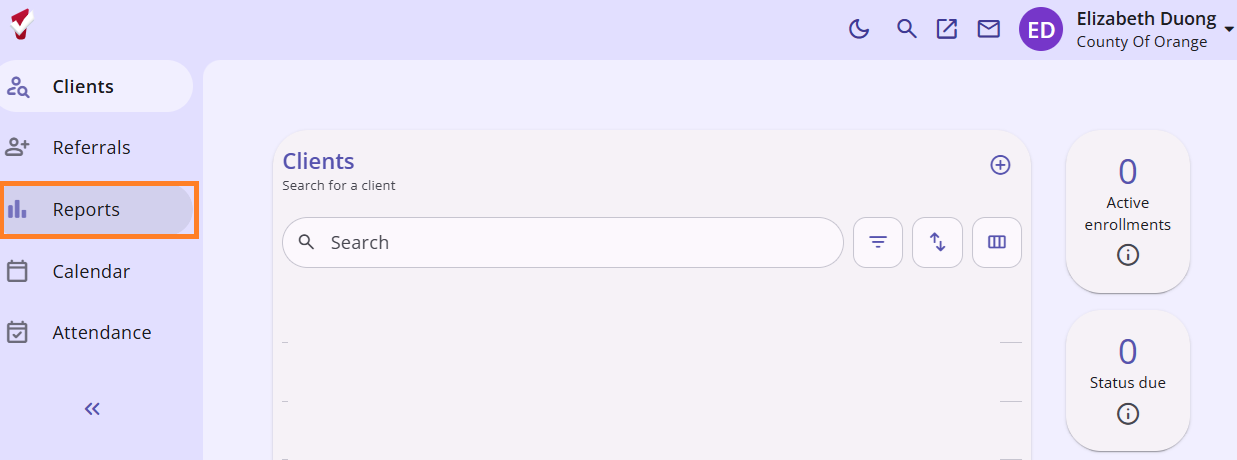
Step 1: Switch over to the County of Orange agency view. Click on the Launchpad, and select Reports.
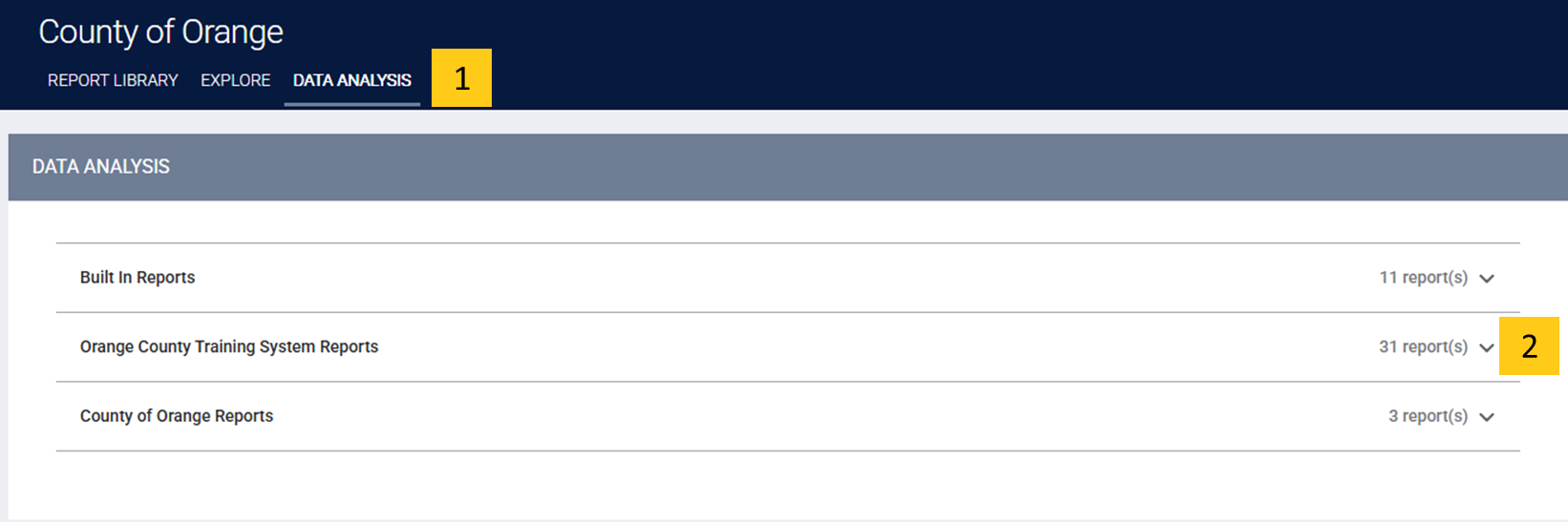
Step 2: Click on the Data Analysis tab, and expand the drop down next to Orange County Clarity System Reports
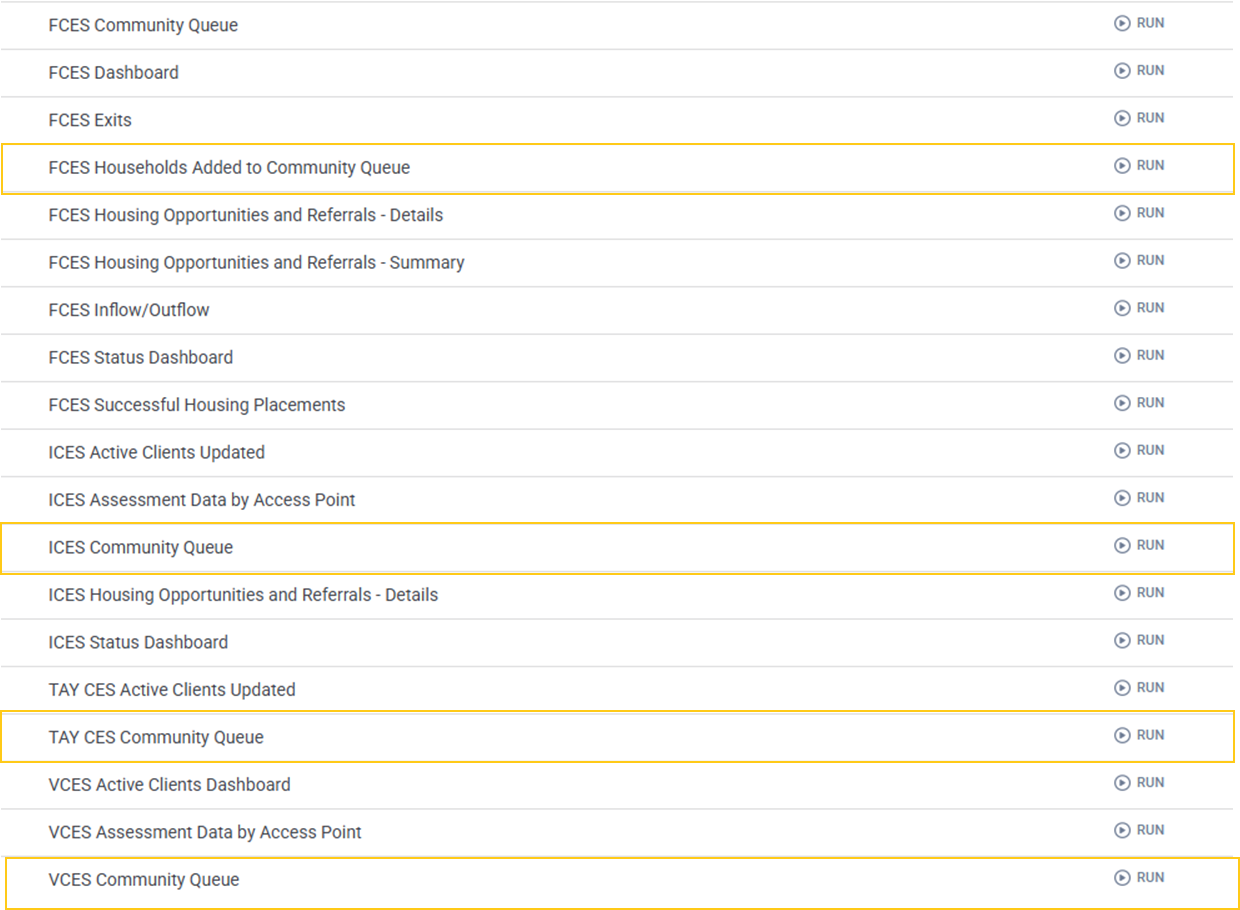
Step 3: Click on the Run button next to the report you would like to run.
For households on the Coordinated Entry System Community Queue, run the Community Queue report for that CES subpopulation.
For households on the Bed Reservation Community Queue, run the Bed Reservation Queue report for that CES subpopulation.
Step 4: Once the report is open, click on the Gear button and select Download as CSV to export both reports into Excel.

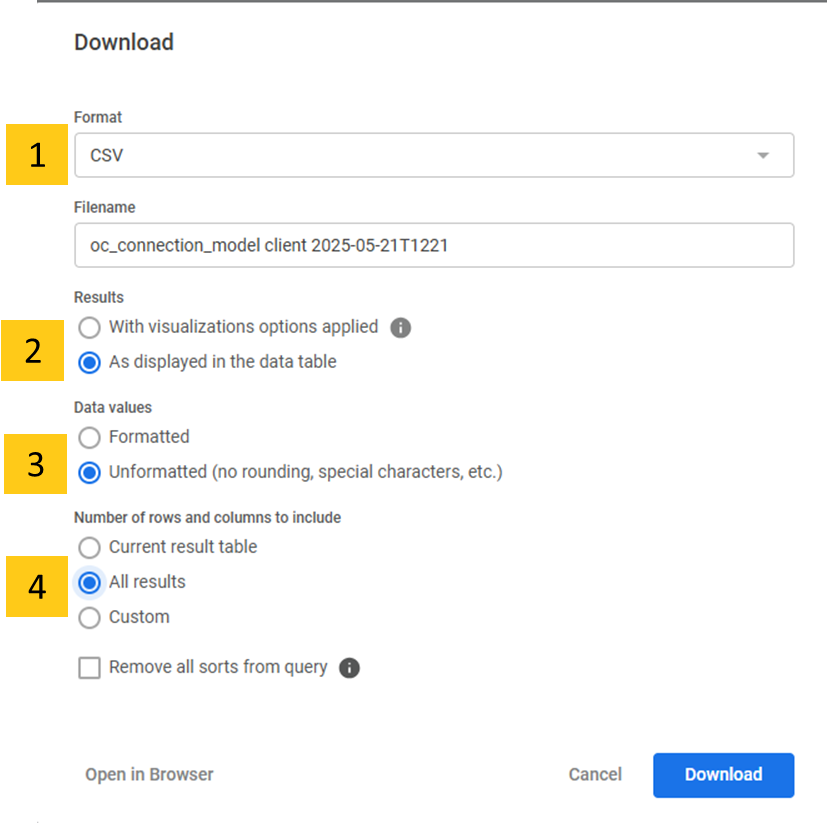
Step 5: A popup box will appear. Make sure that Format is set to CSV, Results is set to "As displayed...," Data values is set to "Unformatted (no rounding...)," and set Number of rows/columns to include "All Results." Then click Download.
Understanding Community Queue Reports
When viewing the CQ reports in Excel that are several columns used to categorize data needed to sort and prioritize the most vulnerable households according to OC CES prioritization policies.
CES Leads may request other data mapped to specific screens in Clarity to be added to the report by entering a ticket with the HMIS Help Desk.
Some examples include:
Approximate Date Homelessness Started (or LOH): This result is mapped to the self-reported "Approximate Date Homelessness Started," field from the CES entry screen.
Days Since Referral Added to Queue: The number of days since the date the household was added to the Community Queue.
Chronic Homeless at PIT/Current Date (CH): Whether or not the head of household meets the qualifications to be considered chronically homeless as of the date the report was run.
Assessment Date: Date the head of household's CES assessment was completed.
NOTE: The version of the Housing Community Queue presented during live CES Housing Match Meetings may appear different than the canned Community Queue reports in Clarity. This is because the CES Matchmakers will apply filtering that prioritizes clients based on OC CES prioritization factors, and potentially, also filter for additional housing opportunity eligibility.
Viewing Available Housing Opportunities
The Available Housing Opportunities report includes a list of all housing opportunities that are available for match through the Coordinated Entry or Bed Reservation Systems.
The CES Leads receive this report on requested days/times to assist with matching. The Bed Reservation report is sent to the CES Leads on a daily basis, usually before noon.
If additional staff beyond the CES Matchmaker need to be added to the mailing list for either report, please enter a ticket with the HMIS Help Desk.
NOTE: CES Access Point Agency staff looking for the prioritized lists of households eligible for weekly housing opportunities must contact the CES Leads for CES Match Meeting information.
Matching a Household to a Housing Opportunity
Staff assigned the Matchmaker role access are the only staff able to match households to Housing Opportunities. The Matchmaker access role is available only to specific staff at CES Lead agencies.
Below are the steps a Matchmaker will take to refer a household identified from the Community Queue for a housing opportunity, to the available vacancy in Clarity.
Step 1: Under the County of Orange agency view, navigate to the Referrals button from the Primary Navigation Menu to the left of the screen.
Step 2: Go to the Community Queue tab on the Referrals page, and select the appropriate Community Queue that the household is being referred from.
- When matching clients identified for referral from the Bed Reservation System Queue, select Bed Reservation.
- When matching clients identified for referral from the CES Community Queue, select Coordinated Entry System.
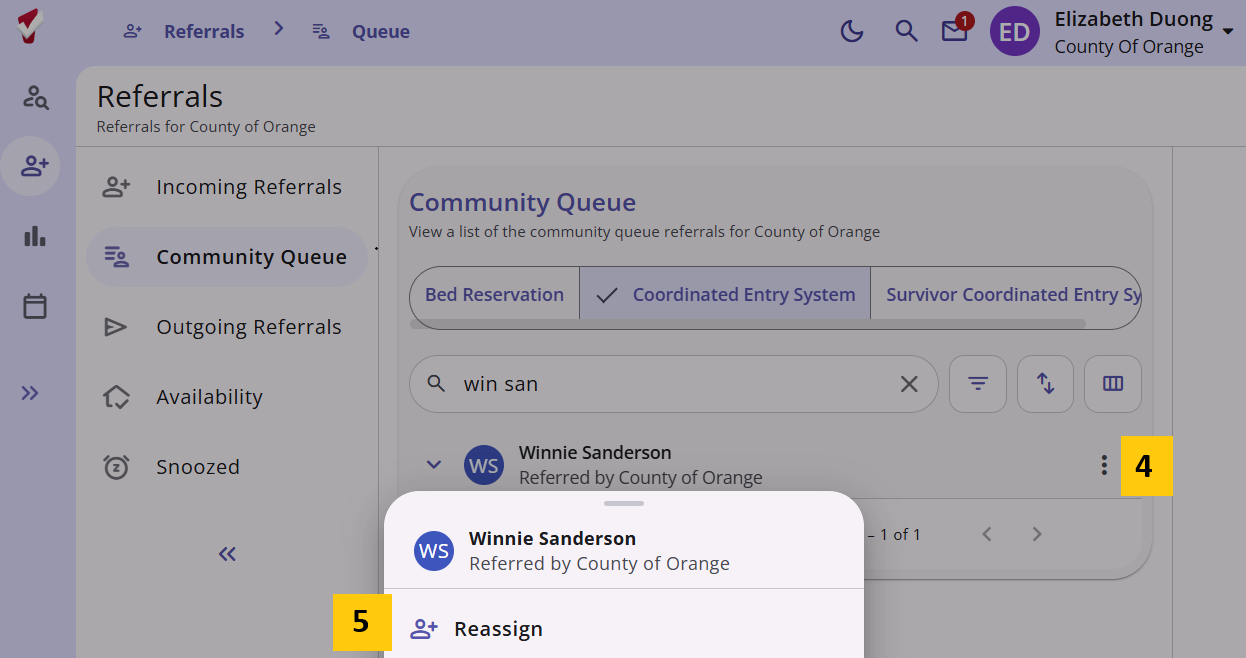
Step 3: Enter the client's UID into the Search field.
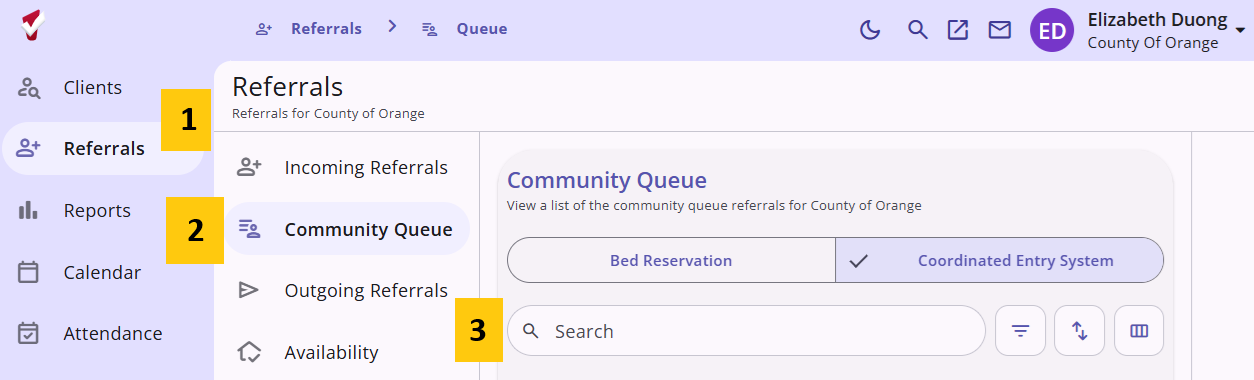
Step 4: Click on the Elipses (3 dots) next the to client's name.
Step 5: A new menu will appear and select Reassign.
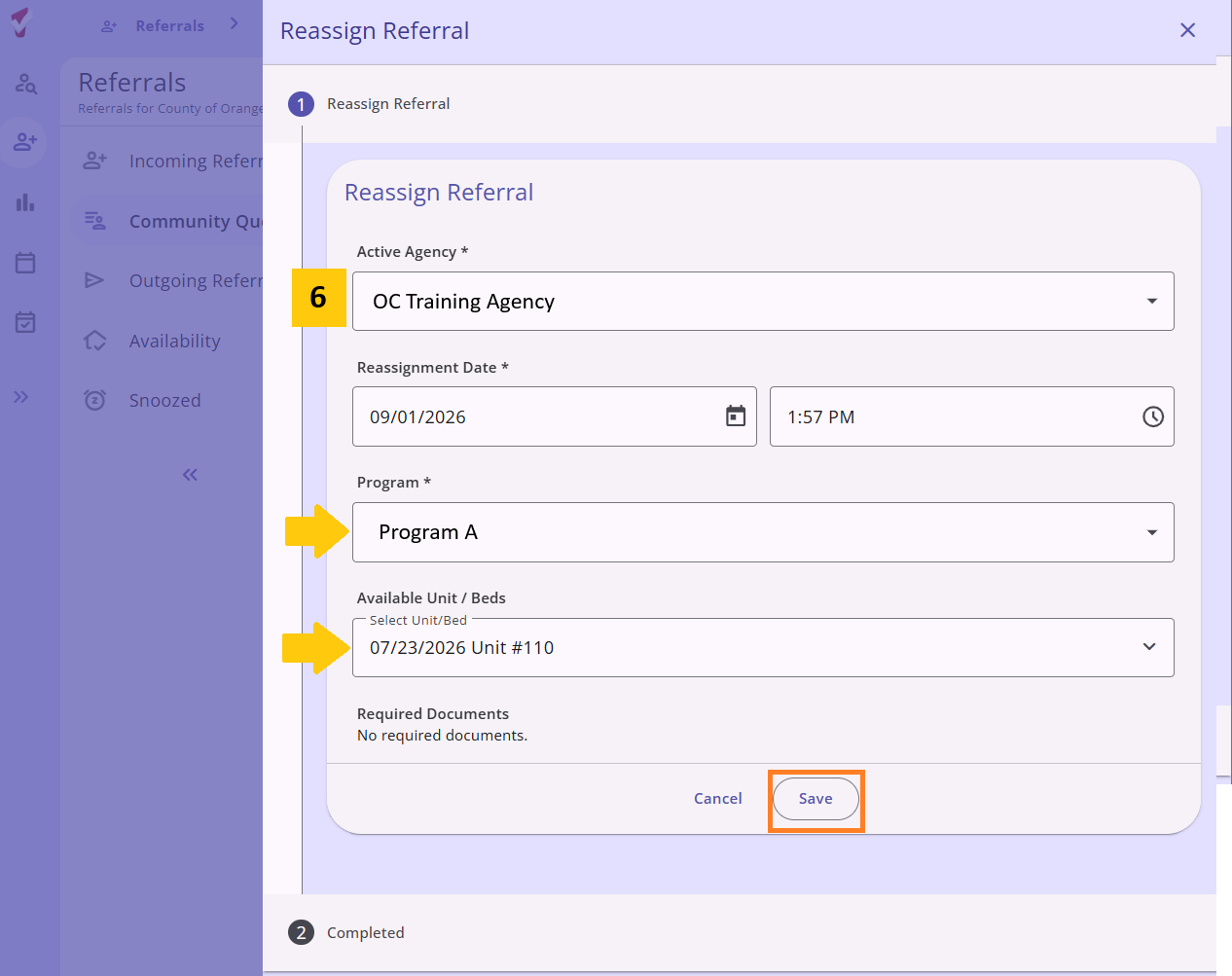
Step : The Reassign Referral screen will populate. Select the Active Agency, Program and Available Units/Beds to match this client to a housing opportunity.
NOTE: Only available vacancies created by the Active Agency (step 3) will appear from the Program drop-down. If you are unable to view the Reassign section or find a specific vacancy, please refer to the Troubleshooting Common Matching Errors section of this Knowledge Base Article.
Step 7: Once the household has been reassigned to a housing opportunity, the referral to the housing opportunity will appear in the History section at the bottom of the screen. The household will be removed from the Community Queue, and will instead appear as a Pending match to the housing opportunity.

