


 165
165
Background
Users may discover instances where a file was uploaded to a client's HMIS record in error. Once identified, users should reach out to their Agency Administrators to have the erroneous file deleted. Only Agency Administrators have the access permission to delete files.
Deleting Files
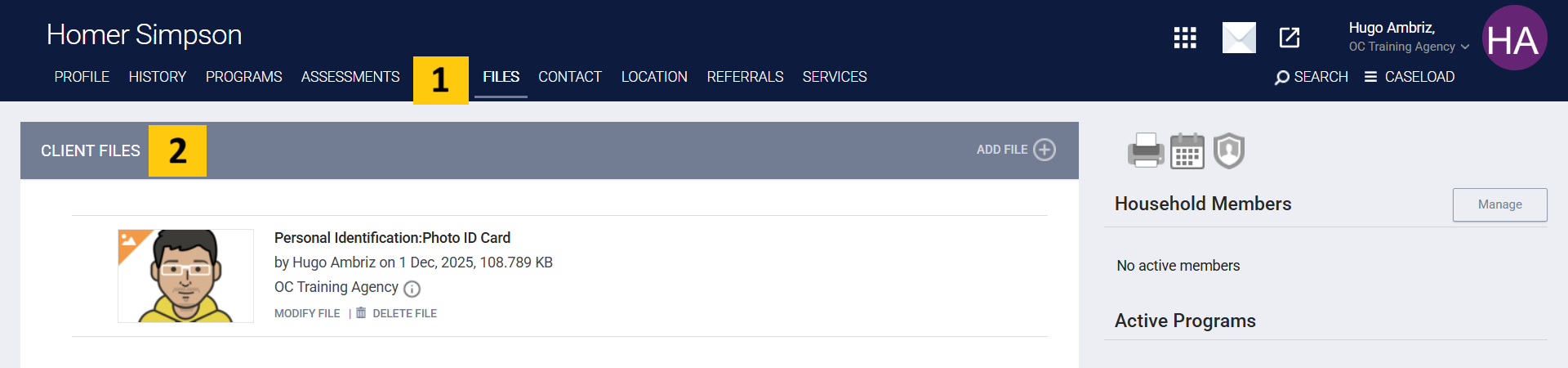
Step 1: Navigate to the client's client profile
Step 2: Switch to the client's files tab, and locate the erroneous file that should be deleted
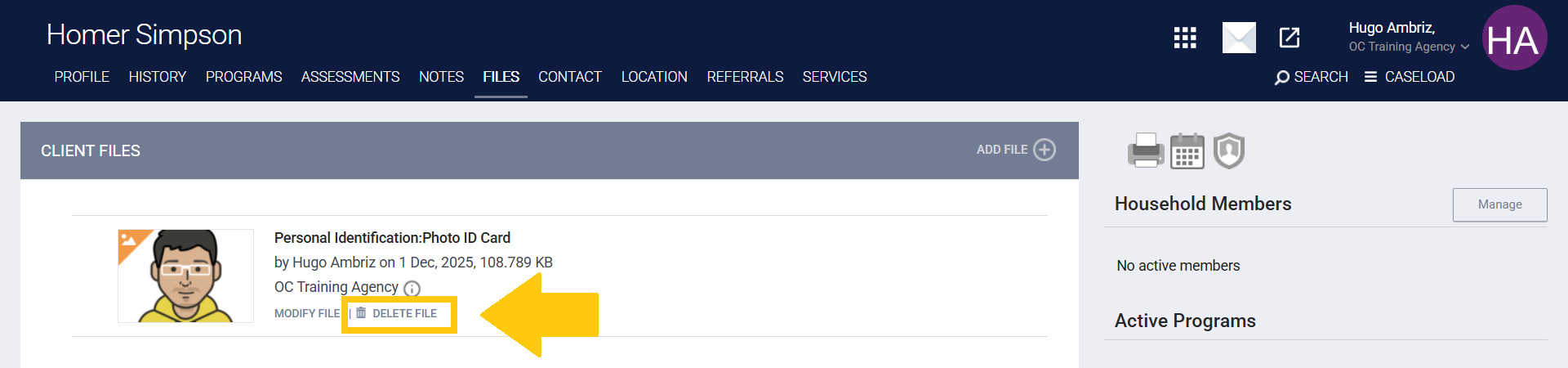
Step 3: Click on the "Delete File" button located under the file's information section
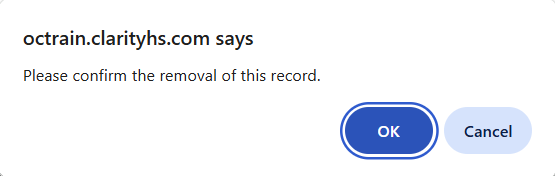
Step 4: On the pop-up window that appears, click on the "OK" button to successfully delete the file
Deleting CES Files
Agency Administrators with CES access also have the ability to delete files under the County of Orange's agency to assist the CES Lead/Admin Teams with maintaining up-to-date CES documentation. To delete files under the County of Orange's agency, Agency Administrators will need to switch their agency access to the County of Orange and then follow the process outlined above to delete erroneous CES files.

